A staff member's day
Here's how a typical shift flows in the mobile app — from clocking in mentally at the start of the day to handling customers as they come and go.
Start of the day
- Sign in to the app with the email and password you set from your invitation (see Install & sign in).
- Open the dashboard to see the day at a glance — who's booked in and how busy it looks.
- Switch to the calendar to see the appointments in order.
As customers arrive
- Check them in — tap the scan button in the top bar and scan the QR on their booking, or find the booking on the calendar. Mark them Arrived.
- Start and finish — update the booking's status as the service progresses, through to Completed.
- Take payment — collect a deposit or the full amount right from the booking (see Payments & deposits).
Picking up extra work
When there's an unassigned booking — an online "any available" or a walk-in — you'll see it in the Jobs tab. If you've got a free slot, pick it up and it moves onto your calendar.
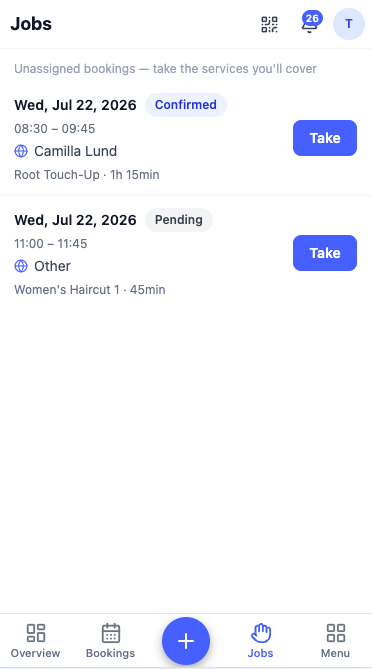
Whoever grabs a job first gets it, so it's worth checking Jobs when you're free.
Booking time off
Need a day away? Send a time-off request from the app — choose your dates and type, and it goes to the owner to approve. You can track its status any time (see Time off).
Next: Install & sign in →