Team & staff
Your team are the people who take appointments. Adding them gives each person their own column on the calendar and lets you control who does what — and, if you want, lets them sign in to work from their own phone.
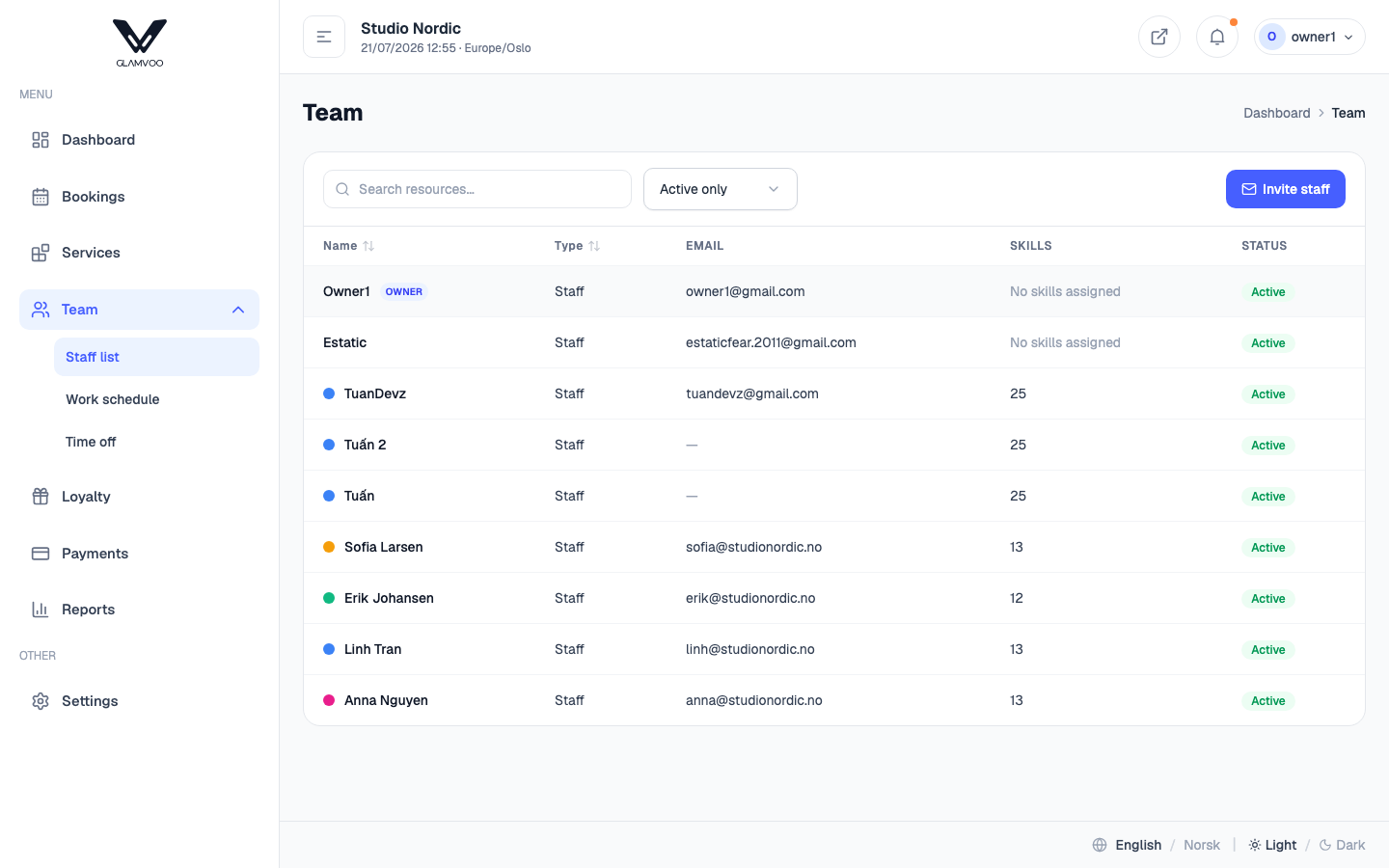
Add a team member
- Select Add on the Team page.
- Enter their name and details.
- Choose which services they can perform — this is what decides who shows up when a customer books a particular treatment.
- Save.
They now appear on the calendar and can be booked.
Give them login access
A team member doesn't need an account just to appear on the calendar — but if you want them to use the app or the admin area, you can invite them to sign in.
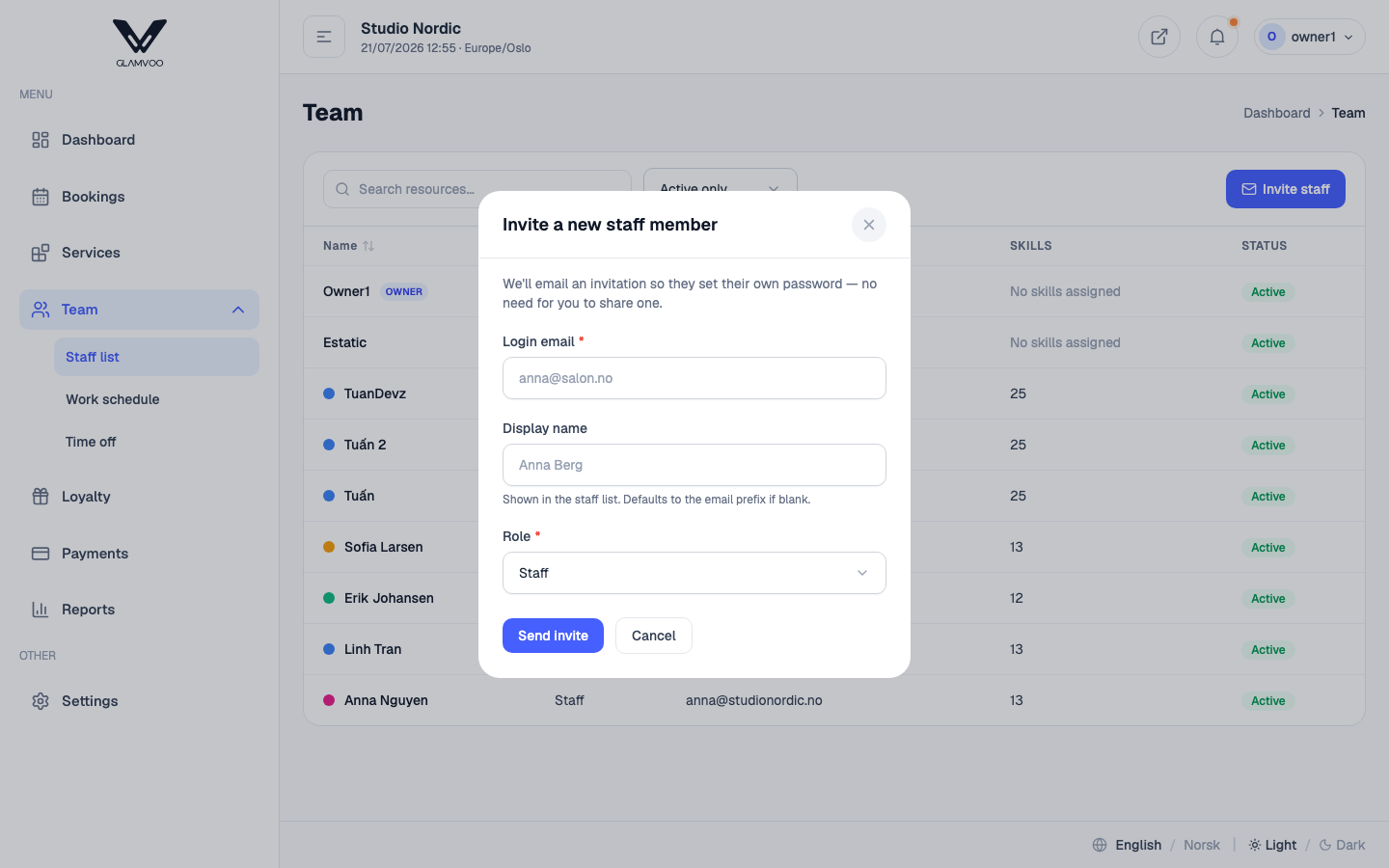
- Edit the team member and turn on login access.
- They receive an email invitation.
- They open the link, set their own password, and can then sign in — on the web or in the mobile app.
Because they set their own password, you never handle it, and they can reset it themselves later.
Owners vs staff
There are two kinds of user:
- Owners manage the whole salon — services, team, schedules, payments, reports and settings.
- Staff see a focused view for daily work — their calendar, check-in, payments, jobs and time off. Owner-only areas stay hidden.
For exactly what a team member can see and do, see What staff can do.
Next: Work schedules →