Work schedules
A work schedule tells the system when each team member is available. It's what the calendar uses to offer (or refuse) time slots — so getting it right keeps bookings landing only when someone is actually there to take them.
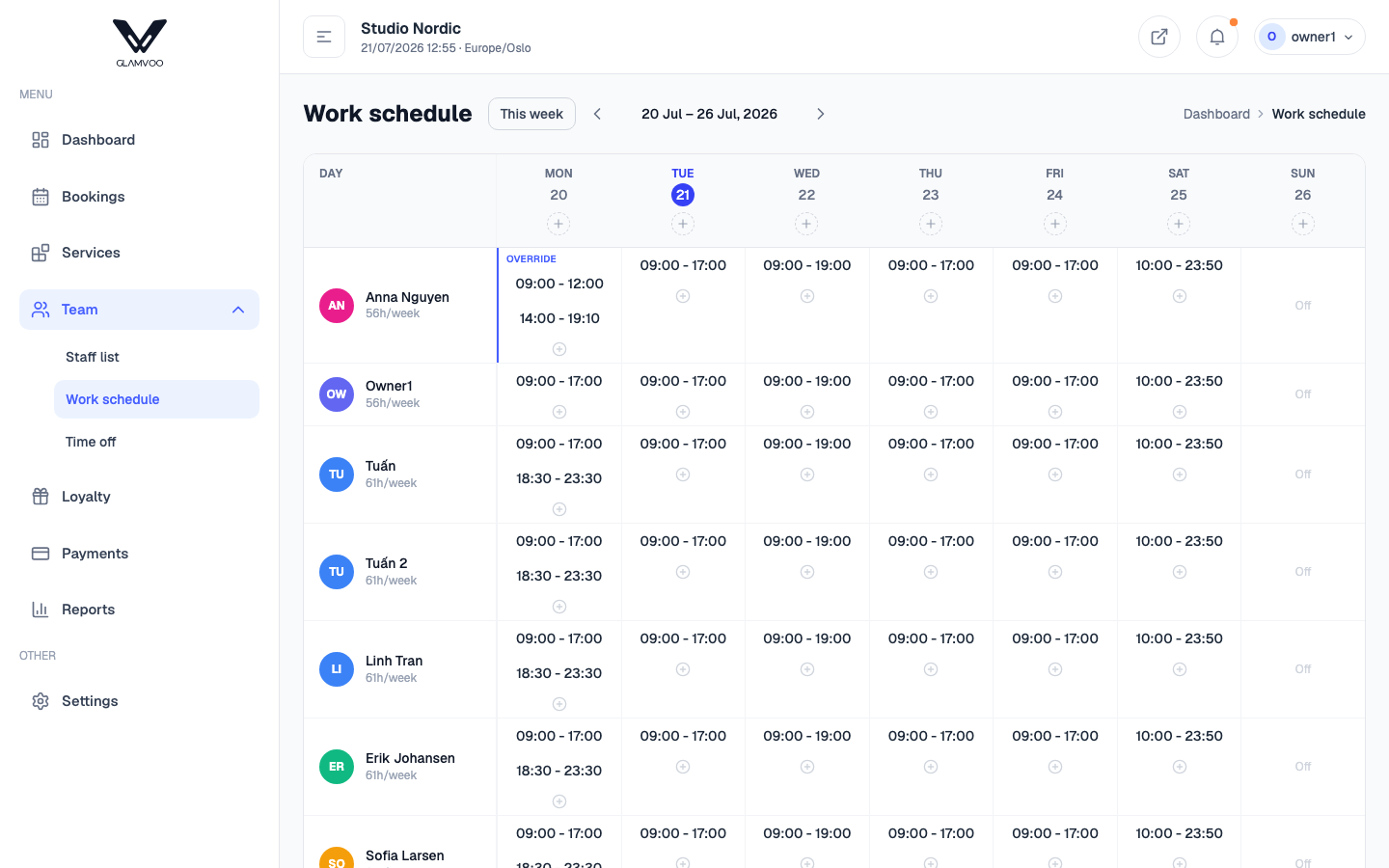
Set someone's regular week
Each person has a default weekly pattern — their normal working hours for each day.
- Pick the team member.
- For each day, set a start and end time, or mark it as a day off.
- Save.
You'll see their total hours per week update as you go. These regular hours repeat every week until you change them.
Change a single day (overrides)
Real life isn't always the regular week. When someone works different hours on a particular date — or takes a one-off day off — add an override for that date. The override replaces the default for that day only; the regular pattern carries on as normal around it.
Use overrides for things like:
- Special hours — a late start or early finish on one day.
- A one-off day off — closed for a course, an appointment, and so on.
How it fits together
- Your salon's business hours set the outer frame — the salon can't be booked when it's closed.
- Each person's schedule sits inside that, and overrides adjust individual days.
- Time off is subtracted on top, so approved leave also blocks bookings.
The calendar only offers a slot when the salon is open and the right person is scheduled and free.
Next: Time off →