Services & categories
Your services are the treatments customers can book — each with a price and how long it takes. A clear, well-priced menu is what makes online booking work, so this is one of the first things to get right.
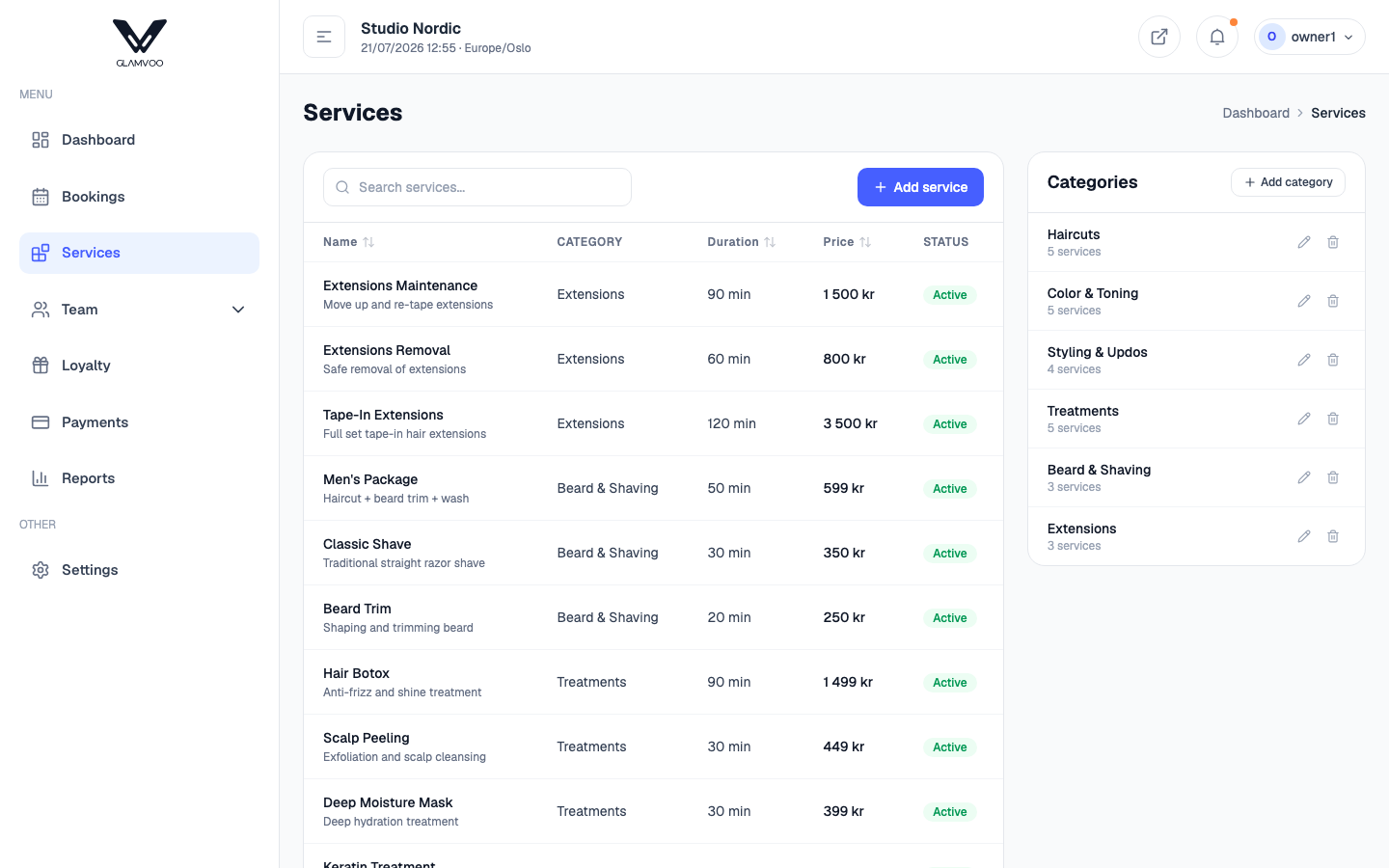
Add a service
- Select Add service.
- Fill in the name, an optional description, the duration (how long it takes) and the price.
- Put it in a category to keep your menu tidy (see below).
- Save.
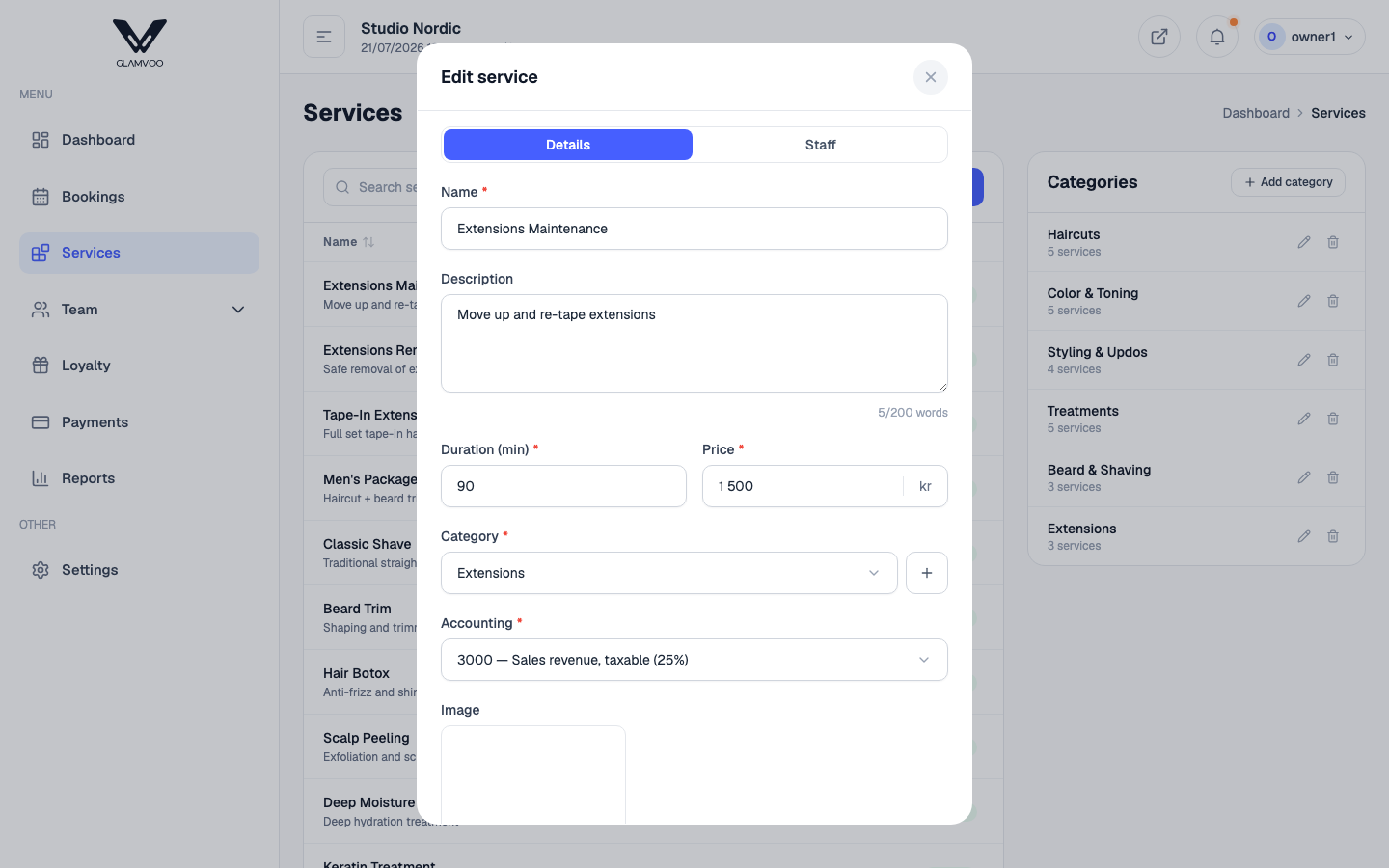
Each service has a Details tab for the basics above, and a Staff tab where you choose who can perform it — so a customer booking that service only sees the right people.
Categories
Categories group related services — for example Haircuts, Colour, or Treatments. They keep your admin menu organised and make your public booking page easy for customers to scan. Assign a category when you create or edit a service.
Turn a service on or off
Every service is either Active or Inactive. Set a service to inactive to hide it from booking without deleting it — useful for seasonal treatments or something you've paused. Flip it back to active any time.
Prices are shown to customers exactly as you set them here, and they feed your reports and tax figures — so keep them up to date.